Tutorial · R&R Product Locator

Every item has a spot. Scan it when it moves.

The Product Locator is how we always know where things are in the store, and it keeps our eBay listings in sync for us. You only need two habits.

1
Moving something? Scan the spot, then the item.Bins, the store front, Whatnot, packed to ship: every move gets scanned.
2
Every sale updates Grindless.Store sales get rung up at the register. eBay and Whatnot sales get their stock recounted to 0 (eBay and Whatnot keep the sales records for taxes).
Rare & Reckless: Game, Pop, Poke. Collectibles, Hartselle, AL

The big picture

Three systems, one item

You work in Grindless and the Locator. eBay updates itself.

GRINDLESS

The register

  • Where products are added and price tags print
  • Store sales are rung up; eBay and Whatnot sales are recounted to 0
PRODUCT LOCATOR

Where everything is

  • Knows each item's spot (A1, B3, FRONT…)
  • Phones and store PCs, with your own name + PIN
EBAY

Online listings

  • Custom label always shows the item's spot
  • Listing ends when it sells in store

What you'll scan

Two kinds of barcodes

Spot sticker (2×1")

On every bin, shelf and special area. Scanning it tells the Locator "I'm putting things here." The screen turns purple and says Putting items into B3.

Price tag (from Grindless)

Prints when an item is added to Grindless. It is the item: scan it to move it, find it or look it up. Nothing to set up; the Locator knows it automatically.

Your day, step by step

How to do each job

Screens marked Locator are the Product Locator (store PCs or your phone). Screens marked Grindless are the register system.

Sign in

Everyone · start of every shift
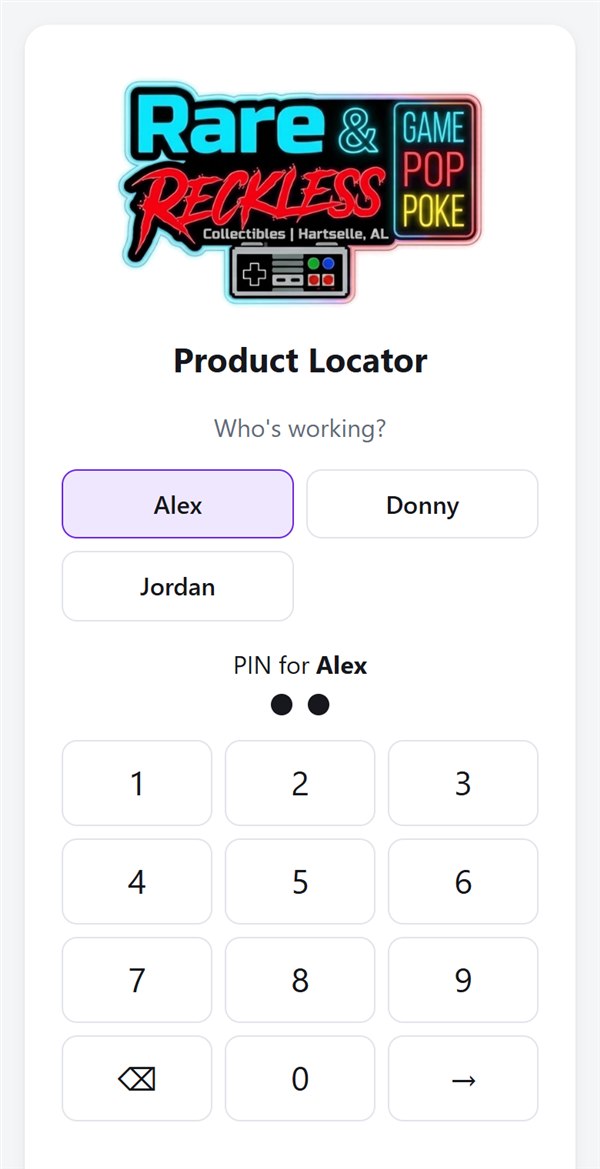
  1. Open the Locator on a store PC or your phone.
  2. Tap your name.
  3. Enter your PIN on the keypad, then tap →.
  4. Leaving a shared store PC? Tap your name at the top right to sign out.

Your moves are saved under your name, so always use your own PIN.

Locator sign-in screen with names Alex, Donny and Jordan and a PIN keypad
LocatorPick your name, then type your PIN.

Put stock away, or move it

Everyone
  1. Make sure the item has its Grindless price tag.
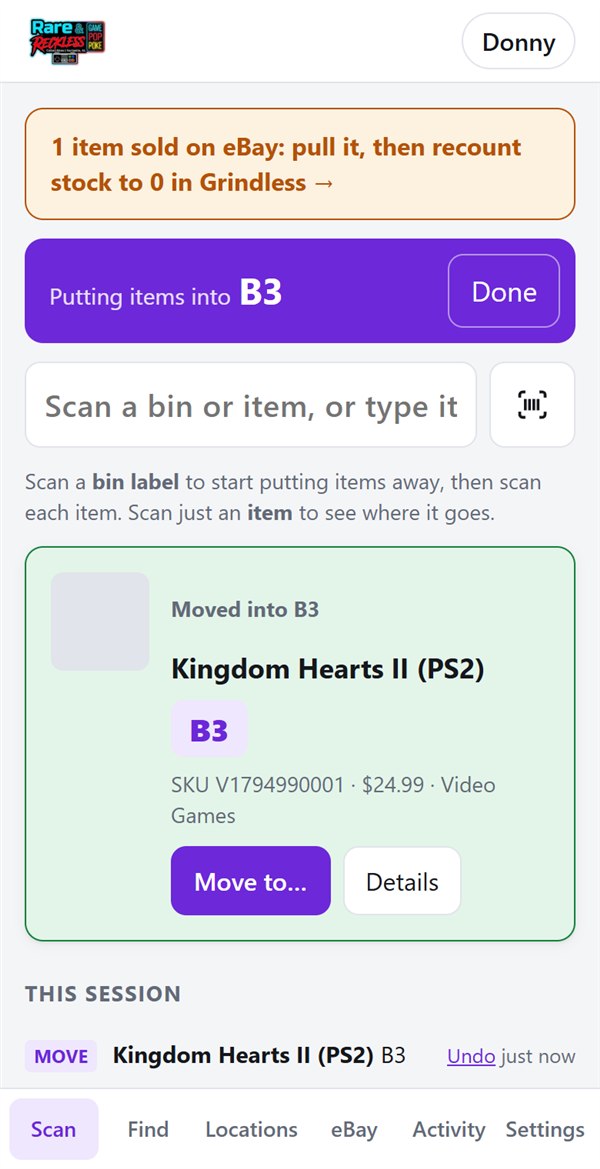
  2. On the Scan screen, scan the spot sticker where it's going (a bin like B3, or FRONT).
  3. The purple bar says Putting items into B3. Now scan each item's price tag. Each one beeps and turns green.
  4. Tap Done when you're finished with that spot.
  5. Scanned the wrong item? Tap Undo under "This session".

If the item is on eBay, its custom label changes to the new spot within about a minute.

Scan screen showing Putting items into B3 and Kingdom Hearts II moved into B3
LocatorBin B3 scanned, then the game's price tag: it's now in B3.

Find something

Everyone
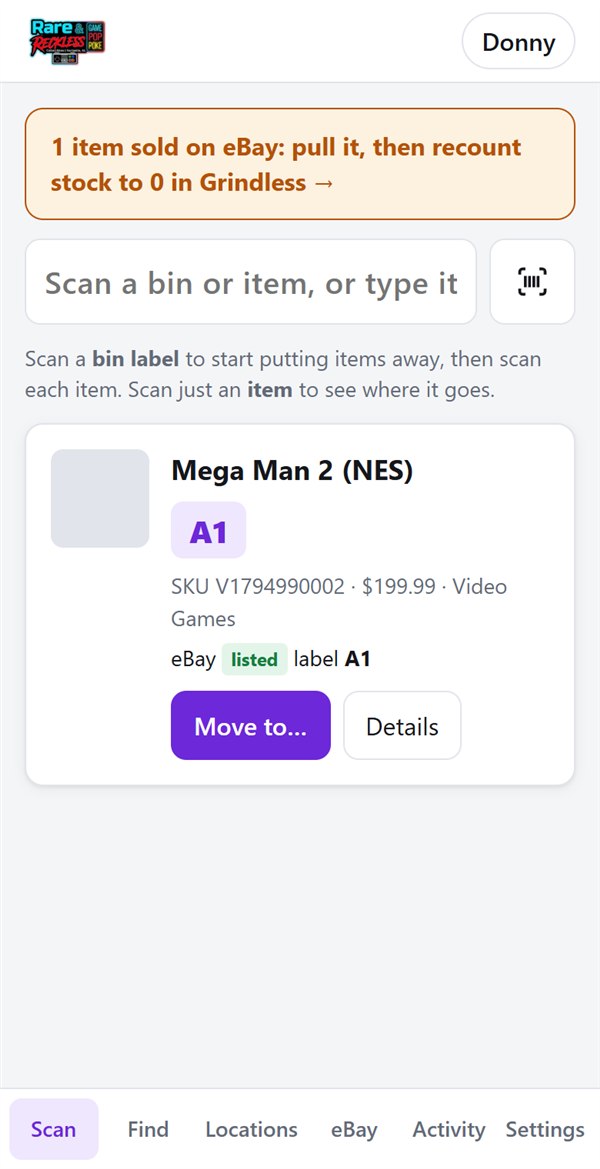
  1. Holding it? Scan its price tag on the Scan screen (without a bin selected). The big badge shows where it lives.
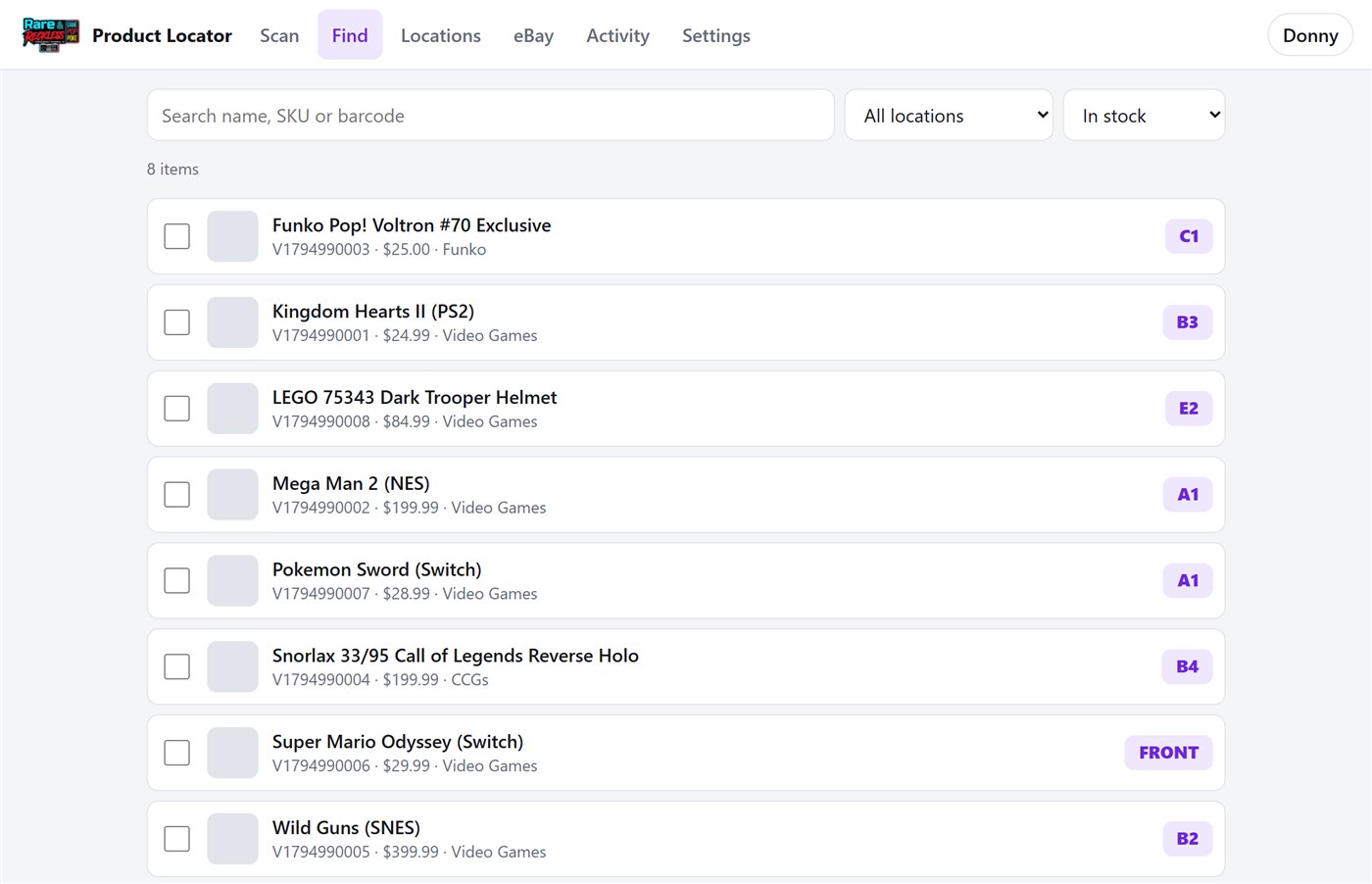
  2. Looking for it? Go to Find and type part of the name, the SKU or a barcode. Each result shows its spot on the right.
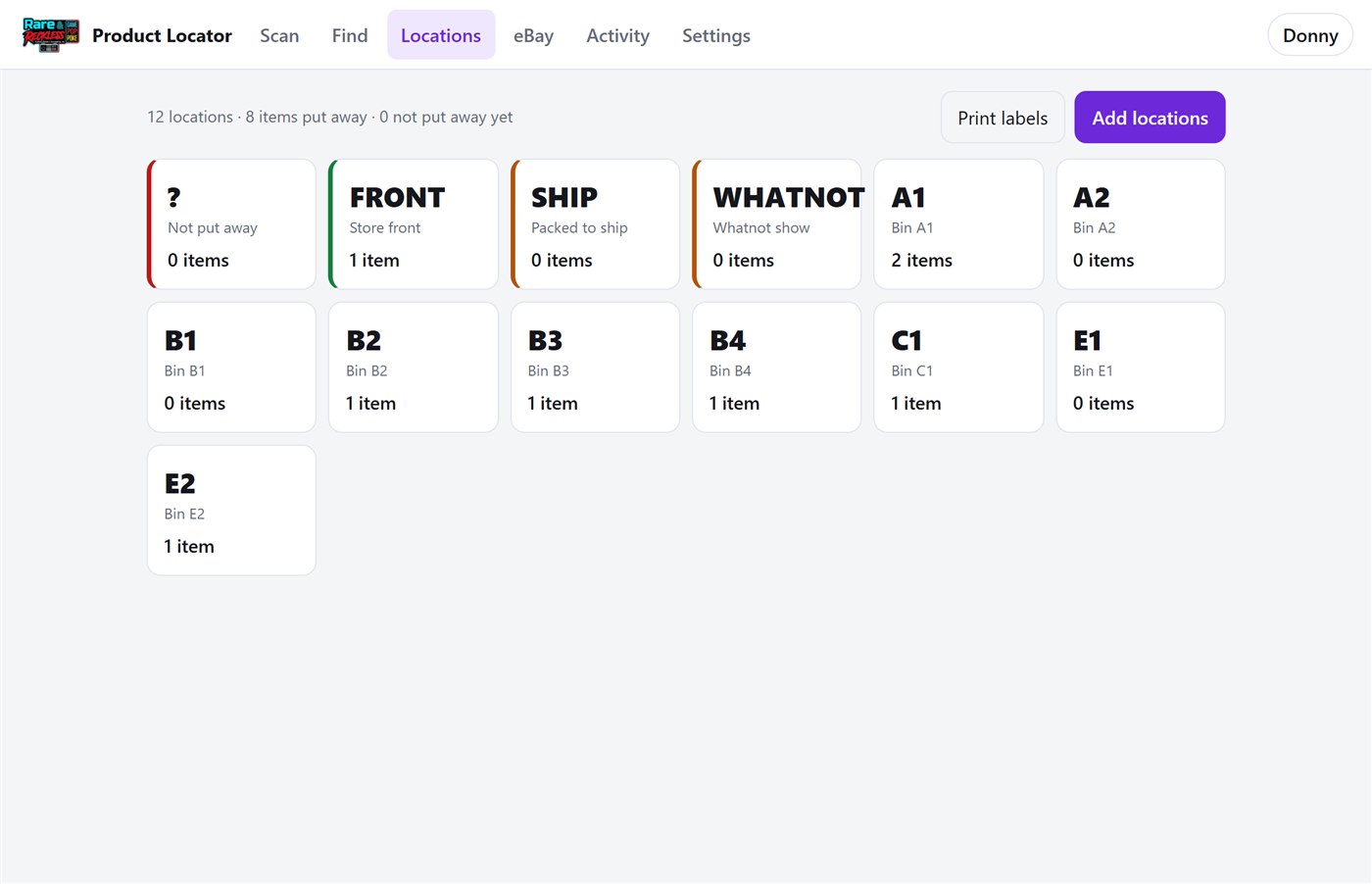
  3. Want everything in one bin? Go to Locations and tap the bin.
  4. Looking for something to sell? In Find, set the status box to Not on eBay (in stock but not listed) or Not moved in 60+ days (good for a price drop, the front shelf or a Whatnot show).

"eBay listed · label A1" means the item is also for sale on eBay, labeled with its spot.

Scan screen showing Mega Man 2 is in A1 and listed on eBay with label A1
LocatorScanned a tag: Mega Man 2 is in A1.
Find screen listing in-stock items with their bin badges
LocatorFind: search by name, SKU or barcode. The badge on the right is the spot.
Locations screen with tiles for each bin and how many items are in it
LocatorLocations: every bin and spot with its item count. Tap one to see what's in it.

Sell something in the store

Register
  1. Ring it up in Grindless like normal. That's all.

Within about a minute the Locator marks it sold and clears its spot. If it was on eBay, the listing ends.

Nothing to do in the Locator for store sales. It watches Grindless for you.

An eBay order comes in

Shipping
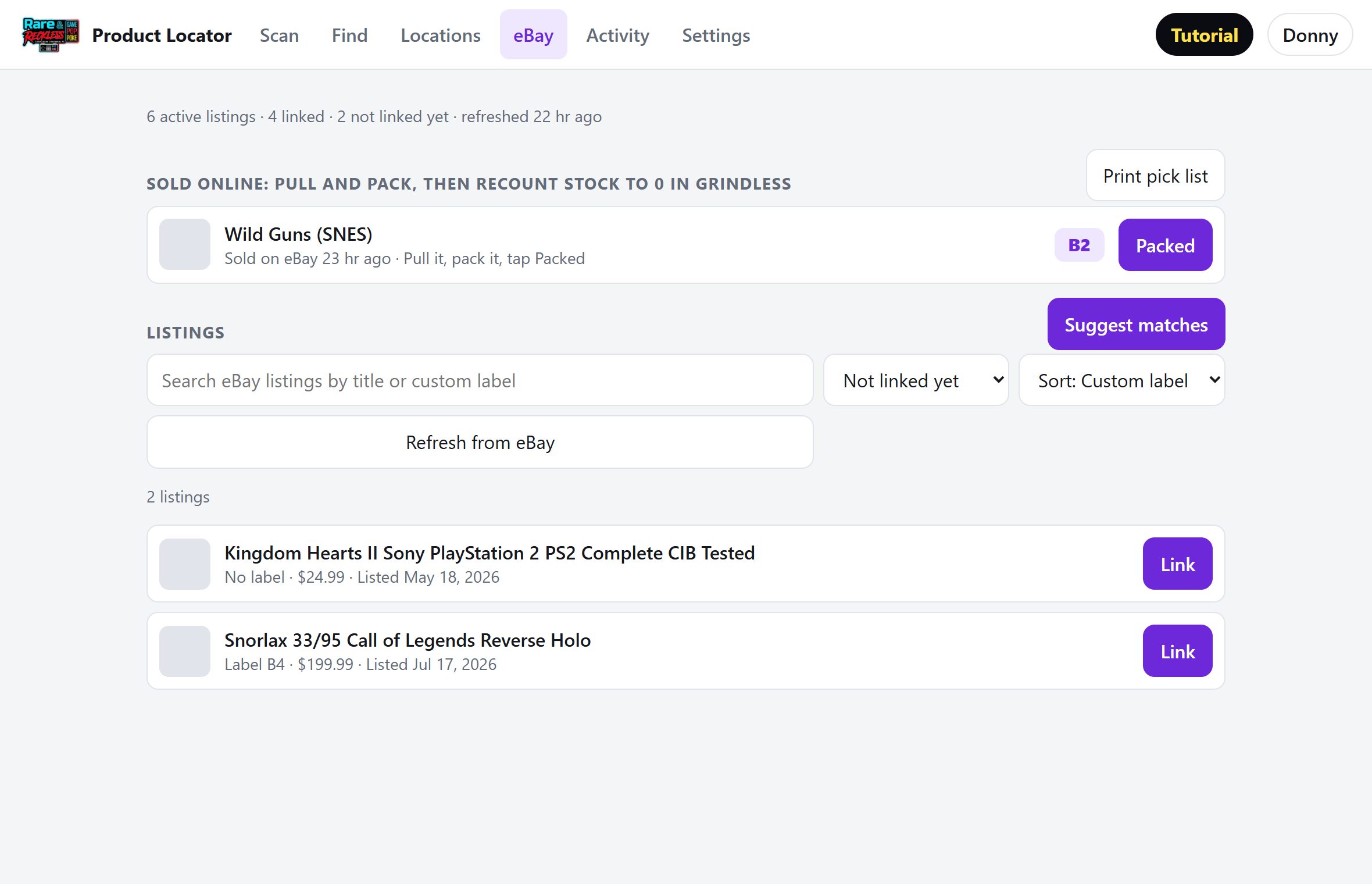
  1. An orange banner appears on the Scan screen: "1 item sold online: pull and pack…" Tap it. The list is in bin order, so you can walk the bins once. (Owners with alerts on also get a phone notification.)
  2. Busy day? Tap Print pick list for a paper checklist sorted by bin.
  3. Pull each item, pack it, and tap its Packed button. It moves to SHIP.
  4. In Grindless, recount its stock to 0 with the eBay order number as the comment. Don't ring it up. (See "Recount to 0" below.) Stef's items skip this step.

Once Grindless shows 0, the Locator marks it sold and it drops off the list.

eBay tab with Wild Guns sold on eBay in B2 with a Packed button, and the Print pick list button
LocatorSold on eBay, waiting in B2. Pull it, pack it, tap Packed.

Recount a sold item to 0

For eBay and Whatnot sales
  1. In Grindless, go to Settings → Products and search for the item (name, or the code under its barcode).
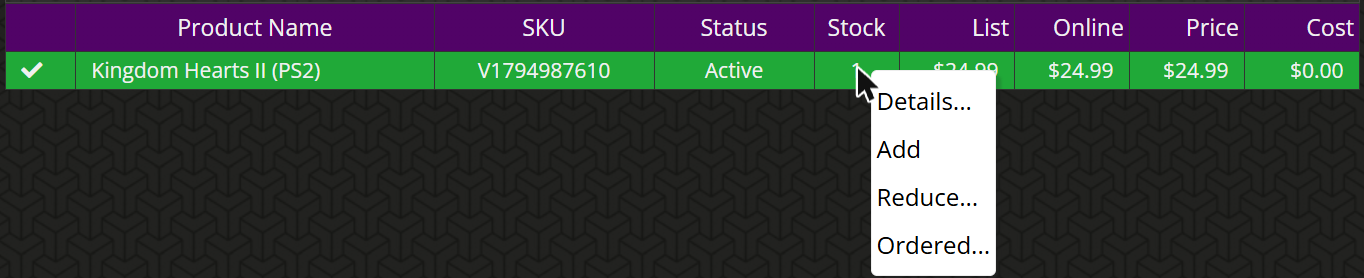
  2. Click the number in its Stock column, then Details…
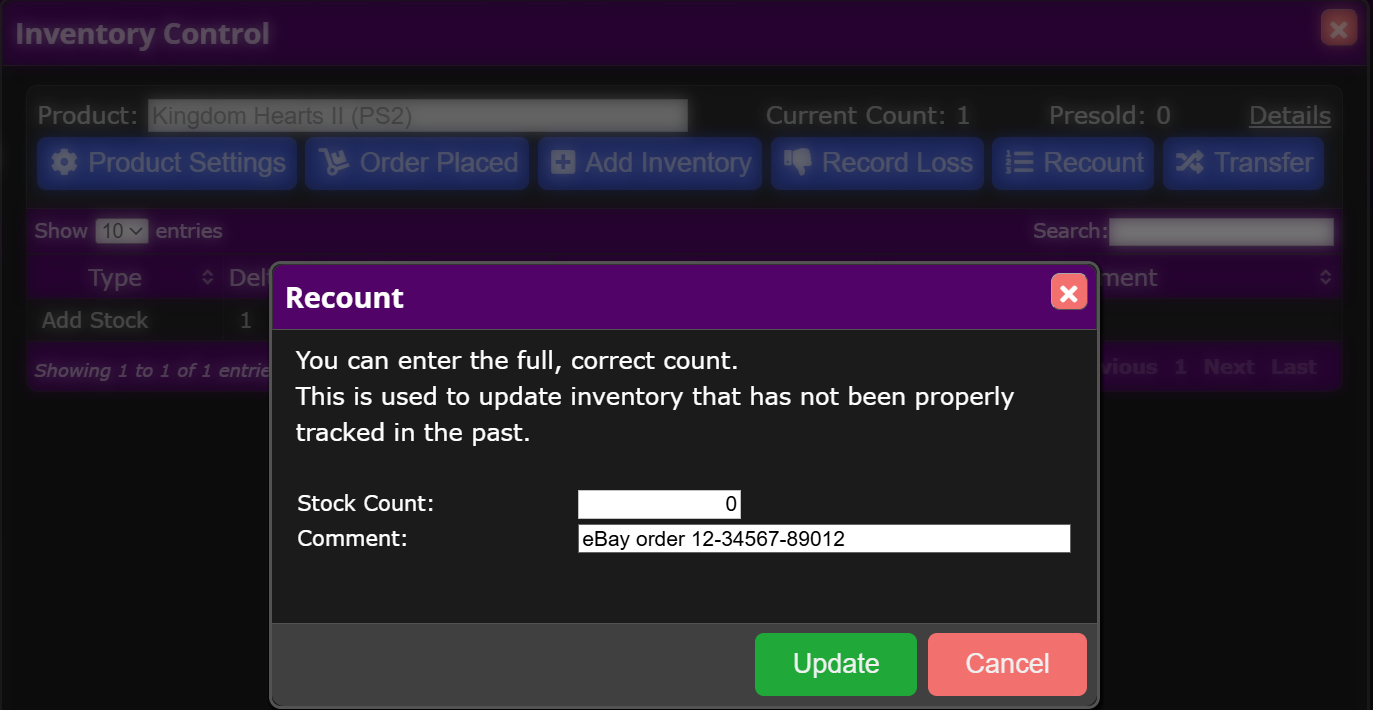
  3. Click Recount. Enter 0 for Stock Count.
  4. Comment: the eBay order number, or "Whatnot" and the show date. Click Update.

Use Recount, not Record Loss. Loss means damaged or stolen.

Grindless product row with the Stock menu open showing Details, Add, Reduce and Ordered
GrindlessClick the Stock number, then Details…
Grindless Inventory Control with the Recount box open, showing Stock Count and Comment fields
GrindlessRecount: type 0 and the order number, then Update.

Whatnot show night

Show host
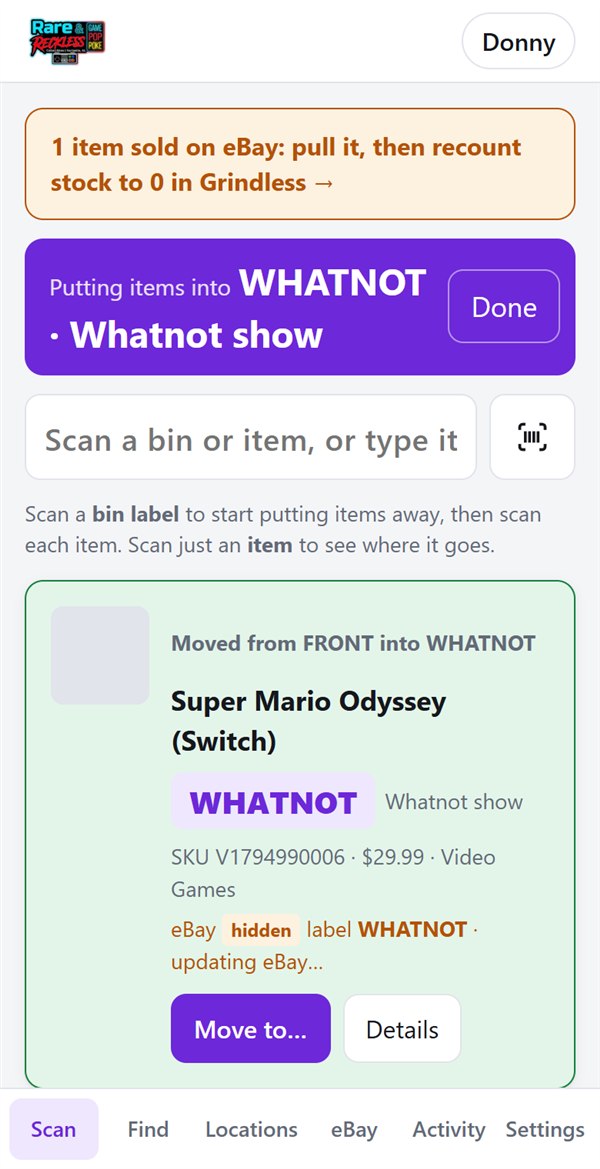
  1. Before the show, scan the WHATNOT sticker, then each item you're pulling.
  2. The item card says eBay hidden · label WHATNOT. It can't sell on eBay during the show.
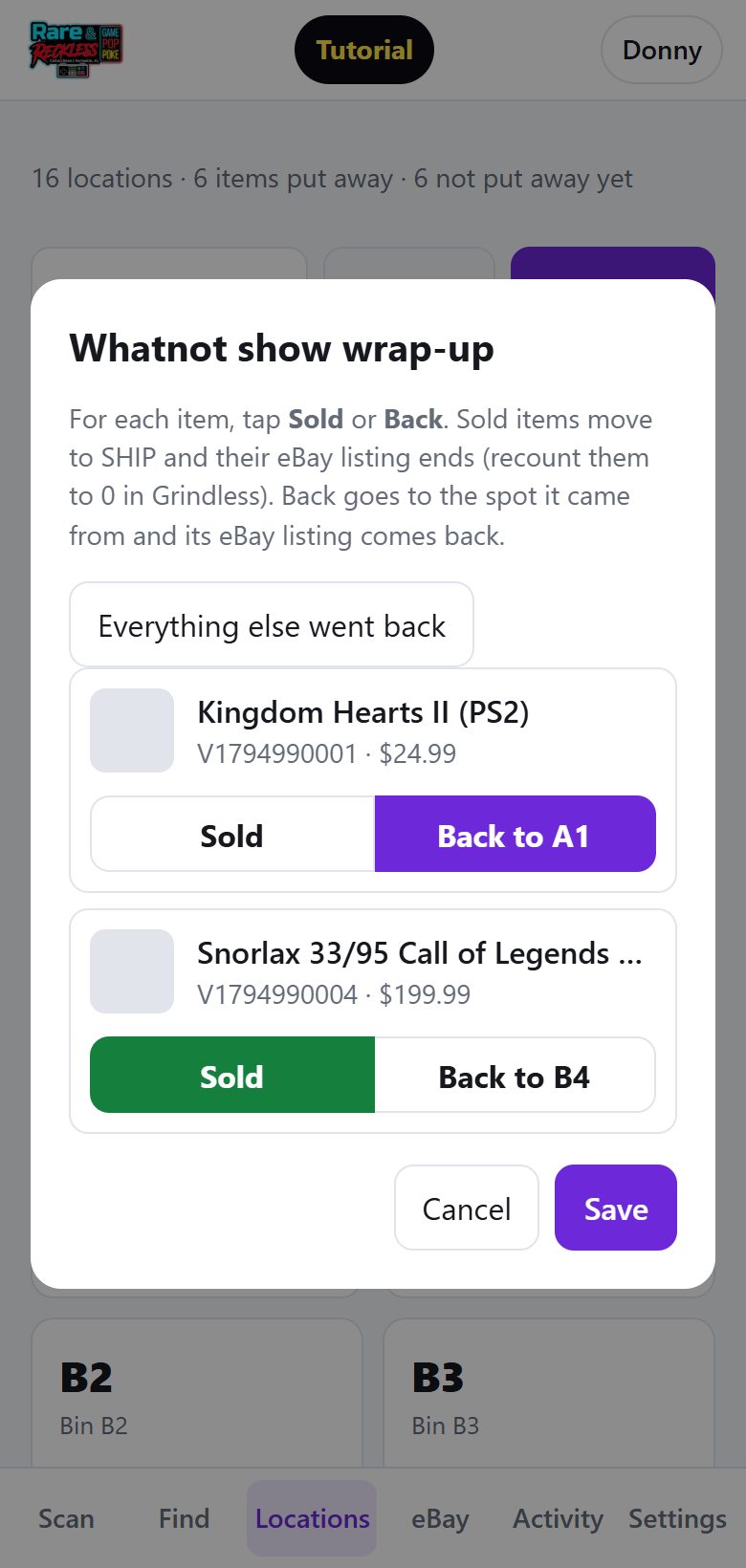
  3. After the show: go to Locations → Whatnot wrap-up. Tap Sold or Back on each item (or Everything else went back), then Save.
  4. Sold items move to SHIP and their eBay listing ends. In Grindless, recount each to 0 with "Whatnot" and the date. Don't ring it up.
  5. Back items return to the bin they came from, and their eBay listing comes back.

"Updating eBay…" means the change reaches eBay within about a minute.

Scan screen showing Super Mario Odyssey moved from FRONT into WHATNOT, hidden on eBay
LocatorPulled for the show: hidden on eBay until it comes back.
Whatnot show wrap-up box with Snorlax marked Sold and Kingdom Hearts marked Back to A1
LocatorAfter the show: Sold or Back for each item.

Print price tags

Whoever adds stock
  1. In Grindless, go to Tasks → Price Tags. Items that need tags are listed.
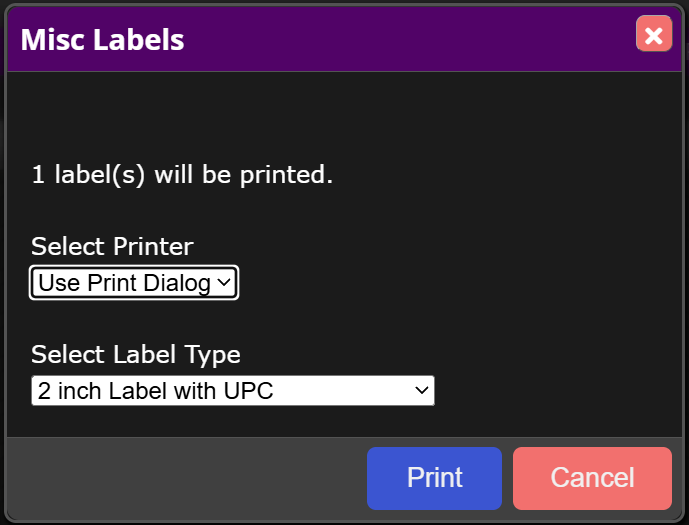
  2. Click Print. Printer: Use Print Dialog.
  3. Change the label type to 2 inch Label with UPC or Zebra 1.25" x 1" – Product Barcode.
  4. Click Print, choose the label printer, and stick the tag on the item.

The label type starts on "1 inch label no UPC". That one, and "1 inch Label with UPC", print no barcode. Always change it.

Grindless Price Tags page listing an item that needs a tag, with Select, Reset, Print and Load All buttons
GrindlessTasks → Price Tags, then Print.
Grindless Misc Labels box with Select Printer and Select Label Type dropdowns
GrindlessSet Select Label Type to a barcode label, like this.
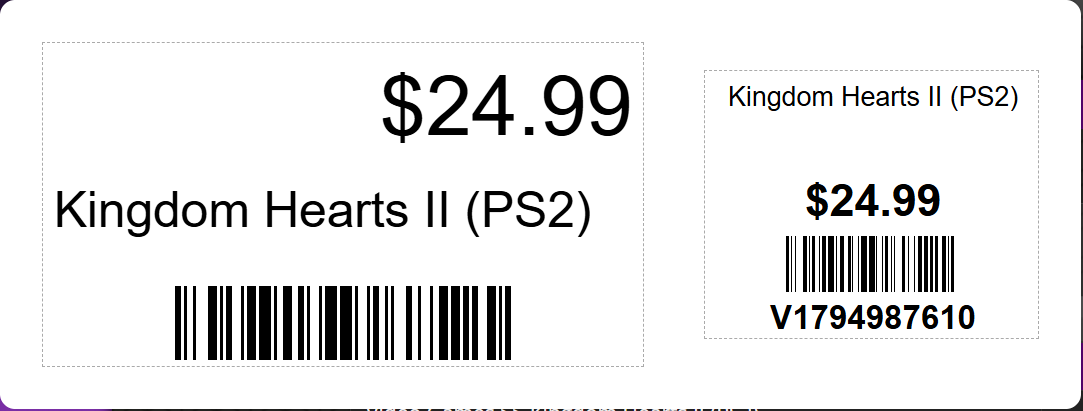
Two good price tags: a 2 inch label and a Zebra label, both with barcodes
Good tags have a barcode. Left: 2 inch. Right: Zebra.

Print bin stickers

Owner · when adding shelves or bins
  1. Go to Locations. New spots: Add locations, then type a code like F1 or a range like F1-F6.
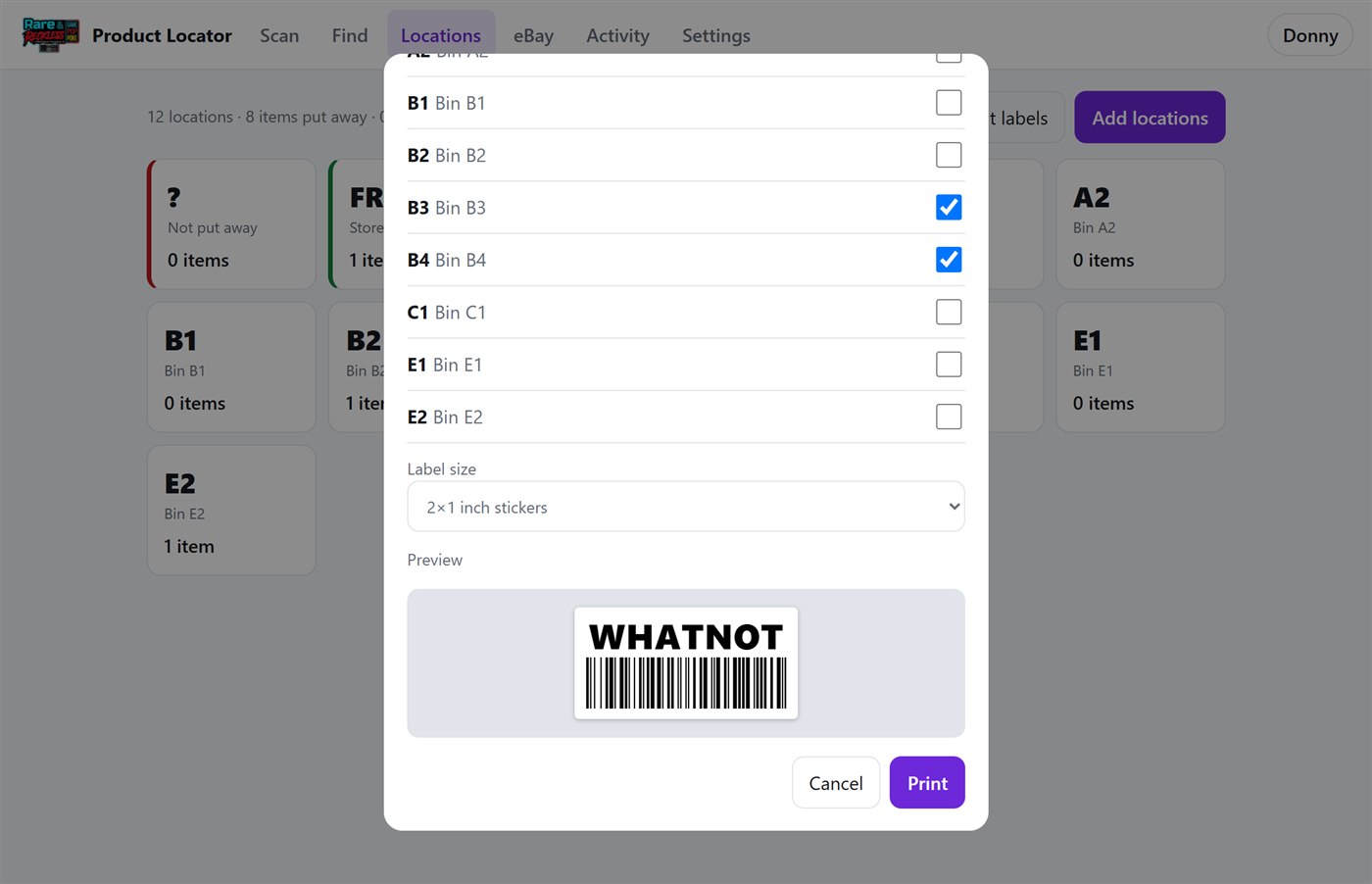
  2. Tap Print labels and tick the spots you need.
  3. Leave 2×1 inch stickers selected, check the preview, and tap Print.
  4. In the print window, pick the label printer and set margins to None.
Print location labels box with 2x1 inch stickers selected and a WHATNOT sticker preview
LocatorThe preview shows exactly what prints.

Check a bin

Anyone · slow moments, or when something's hard to find
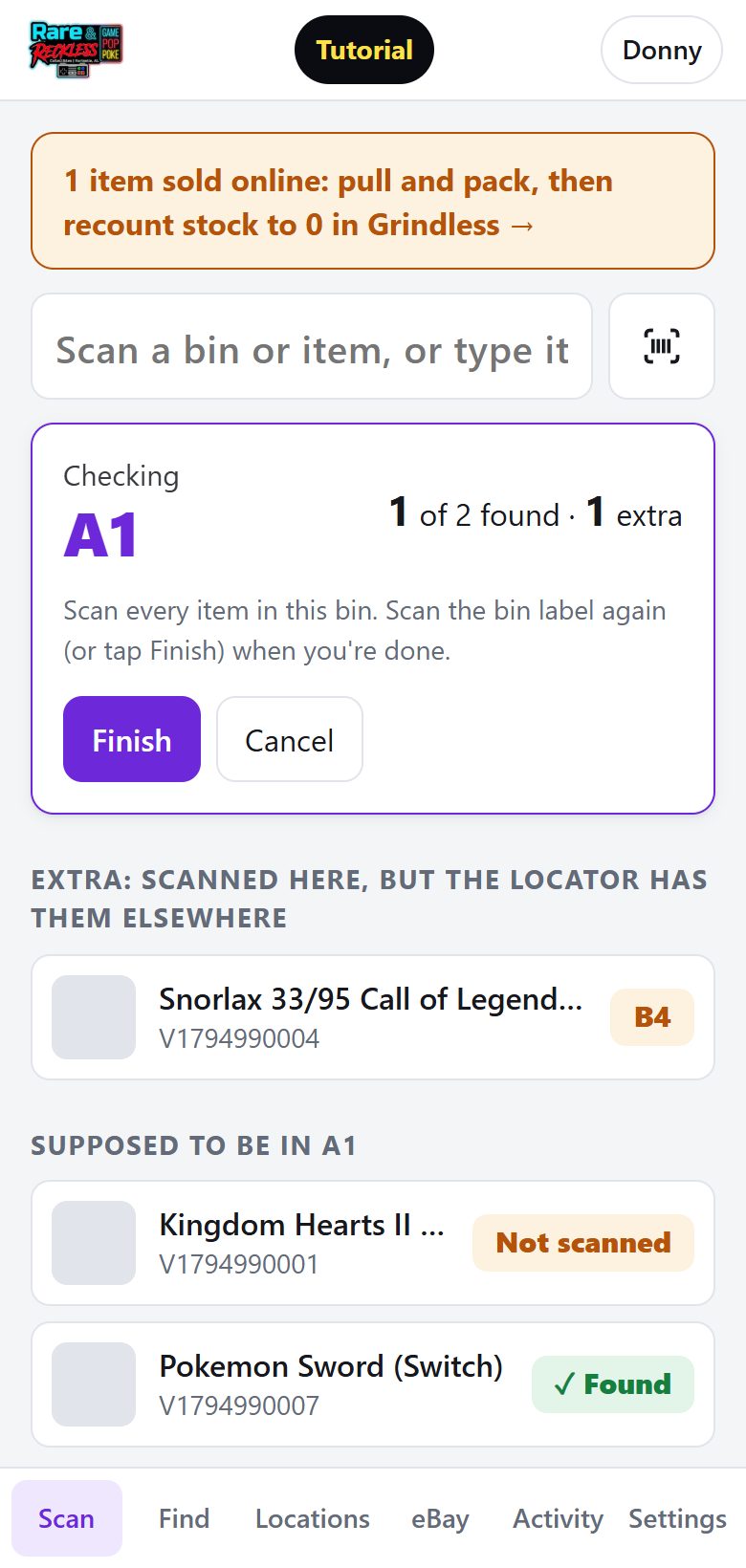
  1. Go to Locations, tap the bin, then Check this bin. (Already putting items into a bin? Tap Check bin on the purple bar.)
  2. Scan every item that's actually in the bin. Each one turns ✓ Found. Items that belong somewhere else show up as Extra.
  3. Scan the bin sticker again, or tap Finish.
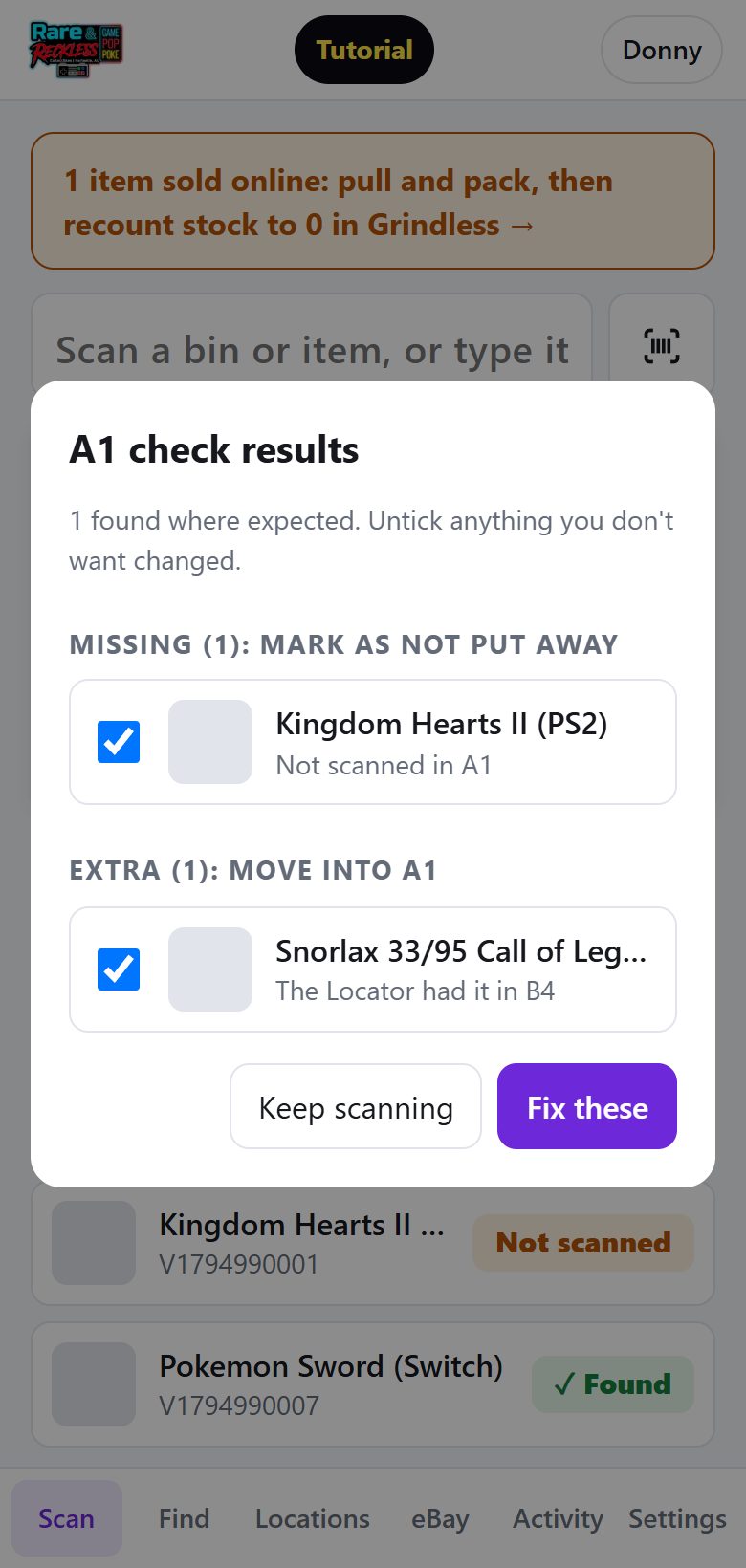
  4. Look over the results and tap Fix these. Extras move into this bin. Missing items become "not put away" so someone can hunt them down.

Doing one bin a day keeps every location right.

Bin check of A1: Pokemon Sword found, Kingdom Hearts not scanned, Snorlax extra from B4
LocatorChecking A1: 1 found, 1 extra, 1 still to scan.
A1 check results listing one missing item and one extra item, each with a checkbox, and a Fix these button
LocatorThe results. Untick anything you don't want changed.

Stef's items

Consignment · anyone
  1. Stef's items show up in the Locator automatically, from his eBay listings (custom labels that start with "Stef"). They don't have Grindless price tags.
  2. Stef has his own bins: STEF-A1, STEF-B2 and so on. On eBay they read "Stef A1". Never put Stef's items in the store's bins.
  3. To find or scan one, type or scan its eBay item number. Searching "Stef" in Find lists them all.
  4. Sold on eBay? Pull it, pack it, tap Packed. No Grindless step for Stef's items.

Owner: add new Stef bins with Locations → Add locations → Whose: Stef.

Moving a Stef item updates its eBay label to "Stef" + the new spot, like Stef B2 or Stef FRONT.

When the Wi-Fi drops

Anyone putting items away
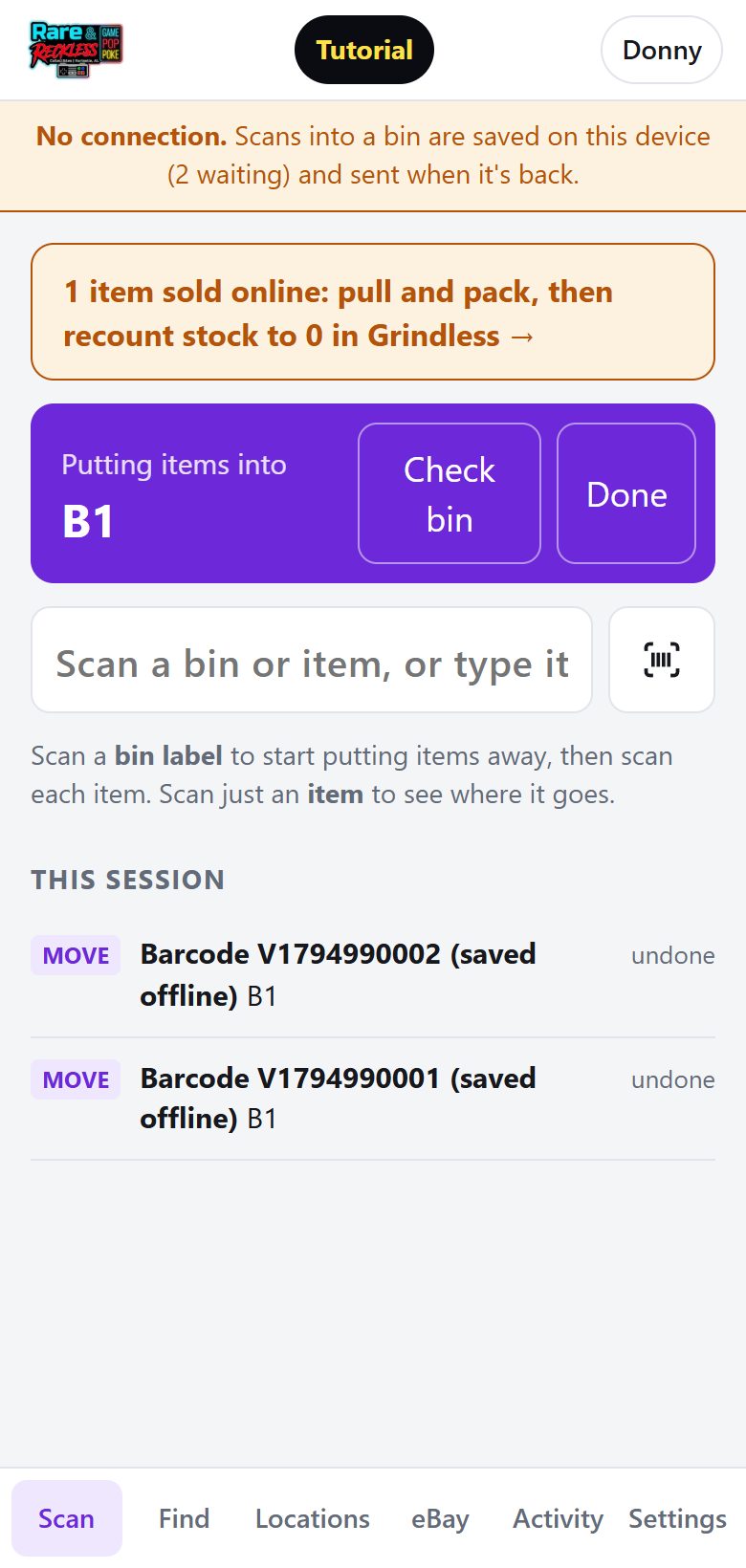
  1. A yellow bar says No connection. Keep going: scan the bin sticker, then the items, like normal.
  2. Each scan is saved on that phone or PC. The bar shows how many are waiting.
  3. When the Wi-Fi comes back, they're sent on their own. If any can't be matched, a box lists them so you can rescan.

Looking items up needs a connection. Only putting items away works offline.

Scan screen with a yellow No connection bar saying 2 scans are waiting, while putting items into B1
LocatorOffline: 2 scans saved for B1, sent when the Wi-Fi is back.

Phone alerts and the spreadsheet

Owner
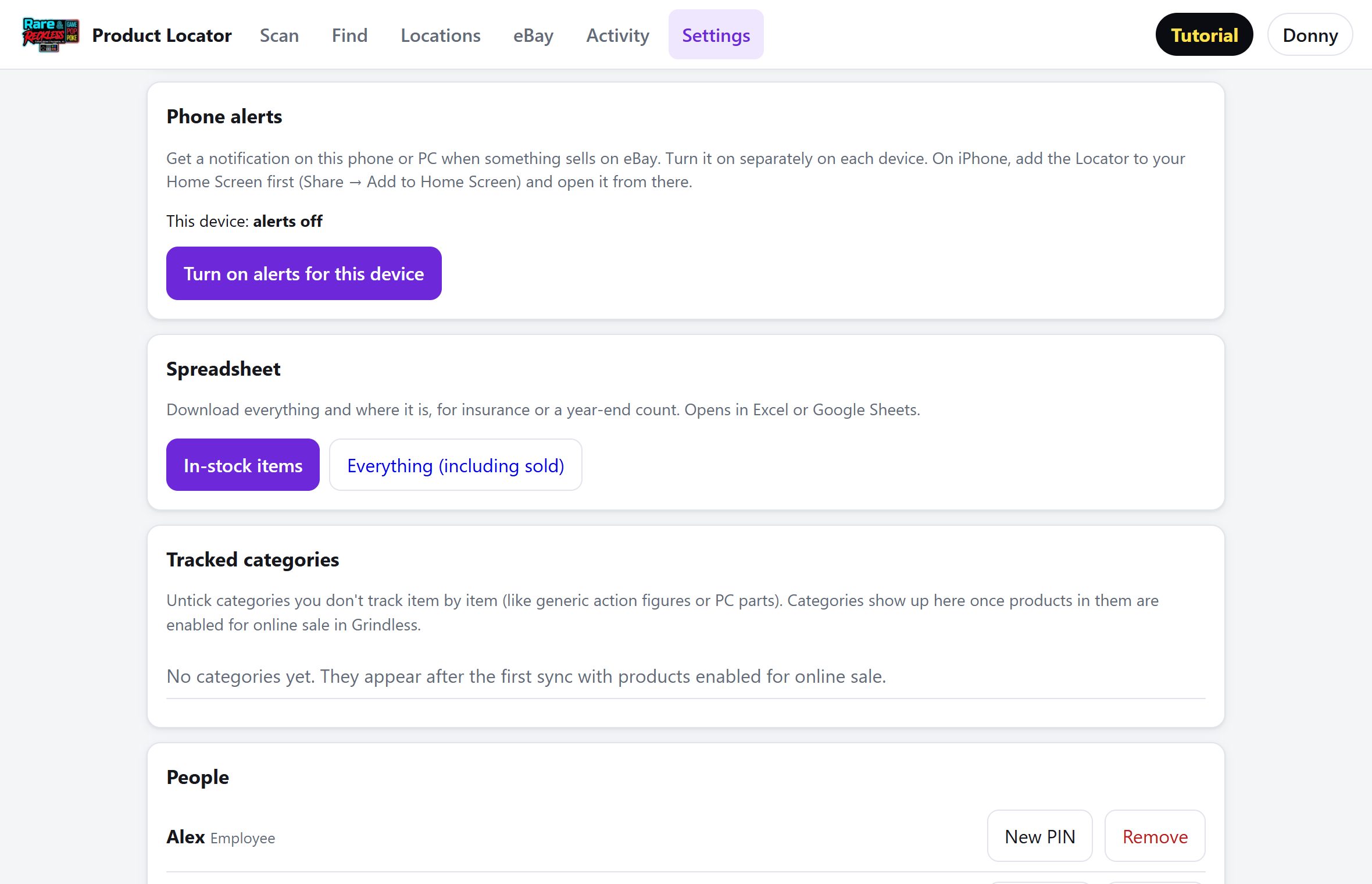
  1. Open Settings → Phone alerts on the phone you want alerts on, and tap Turn on alerts for this device. Allow notifications.
  2. Tap Send a test alert to make sure it works. From then on, every eBay sale pops up on that phone.
  3. iPhone: add the Locator to the Home Screen first (Share → Add to Home Screen) and open it from there.
  4. Spreadsheet: in Settings → Spreadsheet, download everything and where it is. It opens in Excel or Google Sheets.
Settings page showing the Phone alerts card with Turn on alerts button and the Spreadsheet card with download buttons
LocatorSettings: Phone alerts and Spreadsheet.

Special spots

Not every spot is a bin

SpotUse it whenWhat eBay does
A1 B3 E5…The item is in that bin or on that shelf.Custom label shows the bin.
FRONTIt's out on the sales floor.Custom label says FRONT.
WHATNOTIt's pulled for a Whatnot show.Listing is hidden until it's put back.
SHIPIt's sold online and packed.Custom label says SHIP.
Not put awayNew in Grindless but not scanned into a spot yet.No change.

Keep it accurate

Do this, not that

Do

  • Scan every time something moves, even just to the front.
  • Ring up store sales at the register. Recount eBay and Whatnot sales to 0 in Grindless.
  • Print price tags with a label type that has a barcode.
  • Use your own name and PIN.
  • Tell the owner if an item shows a red eBay message.

Don't

  • Don't move items without scanning. Nobody will find them.
  • Don't change custom labels on eBay by hand. Move the item in the Locator instead.
  • Don't sell a WHATNOT item on eBay. It's hidden there for a reason.
  • Don't ring up eBay or Whatnot sales at the register. That would count the sale twice.
  • Don't share your PIN.

Quick answers

When something looks off

"Nothing found" when I scan a tag

New items show up about a minute after they're added in Grindless. Wait a moment, or tap Sync with Grindless now.

I scanned the wrong bin

Tap Undo under "This session", or just scan the right bin and the item again.

A price tag won't scan

Check it has a barcode. If it doesn't, reprint it with the "2 inch Label with UPC" or "Zebra – Product Barcode" label. You can also type the code printed under the barcode into the scan box.

The "Sold on eBay" banner won't go away

The item's stock in Grindless isn't 0 yet. Recount it to 0 and the banner clears within a minute.

An item shows a red eBay message

eBay refused a change. Tell the owner; they can open the item and tap Retry eBay.

It says "Grindless shows this item as sold"

Check with the owner before putting it away. It may have been rung up by mistake, or it's a second copy.

Tutorial complete

Ready, player one?

You can open this tutorial again anytime with the Tutorial button at the top of the Locator.